This article contains the general User Guide for mytranscript. If you are a tennant admin (key-user), you can jump straight to the tennant admin guide here
User Guide mytranscript
1. Introduction and key concepts
mytranscript is an AI-powered meeting assistant. It records your meetings, transcribes what was said, identifies who spoke, and produces a clear summary with action items. Because your organization uses OTYS, the notes from a meeting are written back to the related candidate or contact in OTYS, so your records stay up to date without manual copy-and-paste.
This chapter explains what the product does, how it fits into your OTYS workflow, and the core concepts you will see throughout the rest of this guide.
What mytranscript does for you
Records online meetings (Microsoft Teams, Google Meet*, Zoom) by sending a note-taking bot into the call.
Records in-person meetings through your phone or laptop using the mobile app.
Converts the recording into a written transcript with speaker names.
Generates an AI summary, key points, and action items.
Classifies the meeting and adds tags (for example, "General Screening" or "Vacancy Intake Session").
Lets you play back the video or audio in sync with the transcript.
Lets you share meetings with colleagues internally and with people outside your organization through a secure link.
Syncs the summary and action items to the related candidate or contact in OTYS.
*As of June 2026, the Google Calendar integration is not yet available. This means that you cannot currently connect your Google Calendar to MyTranscript. We expect this integration to be available soon.
How mytranscript fits into the OTYS workflow
mytranscript is designed to sit alongside OTYS:
You sign in to mytranscript using your OTYS account (see "Signing in from OTYS").
When you record a meeting with a candidate or contact, mytranscript can match the participants to the matching records in OTYS.
Once the meeting is processed, the summary and action items are written as a note on the candidate's or contact's record in OTYS.
From a meeting in mytranscript you can open the linked candidate or contact directly in OTYS.
This means your meeting notes live in two places: the full experience (video, transcript, summary) in mytranscript, and a concise written record on the right person in OTYS.
Online meetings versus in-person meetings
mytranscript supports two kinds of meetings.
Online meetings. These take place on Teams, Google Meet, or Zoom. You give mytranscript the meeting link, and a bot joins the call to record it. See "Recording online meetings".
In-person meetings. These are face-to-face conversations. You record the audio directly on your phone or laptop using the mytranscript app. See "Recording in-person meetings".
Both kinds end up in the same "Meetings" list and go through the same processing to produce a transcript, summary, and action items.
The meeting lifecycle
Every meeting moves through a series of statuses. Understanding these helps you know what to expect at each stage.
Status | Meaning |
|---|---|
Scheduled | The meeting is planned but has not started yet. For online meetings, the bot will join when the meeting begins. |
Recording | The meeting is currently being recorded. For online meetings, the bot is in the call. |
Processing | The recording is finished and is being prepared. |
Transcribing | Speech is being converted to text. |
AI Review | The AI is identifying speakers, then writing the summary and action items. |
Completed | Everything is ready. You can watch the recording, read the transcript, and view the summary and actions. |
Failed | Something went wrong and the meeting could not be processed. See "Tips and troubleshooting". |
Cancelled | The meeting was cancelled and has no recording or transcript. |
A typical online meeting flows from Scheduled to Recording to Processing / Transcribing / AI Review and finally to Completed. Processing usually takes a few minutes after the meeting ends.
A note on terminology
Throughout this guide, mytranscript is the application you are reading about. OTYS is your recruitment system. A "bot" or "note-taker" is the automated participant that joins online meetings to record them. A full list of terms is in the "Glossary".
2. Signing in from OTYS
mytranscript uses your existing OTYS account, so you do not need a separate password. This chapter explains the main way to sign in (OTYS Single Sign-On), the email code fallback, and how sessions and signing out work.
OTYS Single Sign-On (the primary way in)
Single Sign-On (SSO) means you sign in once in OTYS and are then allowed into mytranscript without entering another password.
To open mytranscript from OTYS:
Sign in to OTYS as you normally do.
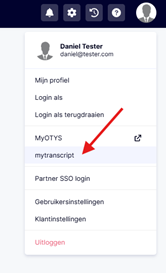
Click your profile picture to expand the quick navigation. And click “mytranscript”
You are taken to mytranscript and signed in automatically.
The first time you sign in this way, mytranscript creates your user account based on your OTYS profile. Your name and email come from OTYS, so make sure your OTYS account has a valid email address.
If your OTYS account does not have an email address, sign-in cannot complete. You will see a message asking you to add an email address to your OTYS user account and try again.
The email login code (fallback)
If you need to sign in directly at the mytranscript login screen rather than through OTYS, you can request a one-time login code by email.
Go to the mytranscript login screen.
Enter your email address and choose Send login code.
mytranscript sends a 6-digit code to your email.
Enter the code and choose Verify.
A few things to know about the email code:
The code is valid for a short time only. If it expires, choose Resend code.
Check your spam folder if the email does not arrive.
The email address must already be known to mytranscript. If you have never signed in through OTYS before, mytranscript will not recognize your email. In that case, sign in through OTYS first.
If your account has been deactivated, you will not be able to sign in. Contact your organization administrator.
Sessions and staying signed in
After you sign in, mytranscript keeps you signed in for a period of time so you do not have to authenticate on every visit. If your session expires, you will be asked to sign in again. When that happens, the easiest path is to open mytranscript from OTYS again.
Signing out
To sign out:
Open the user menu in the top corner of the screen (your name or profile icon).
Choose Sign out.
Confirm when prompted.
Signing out of mytranscript does not sign you out of OTYS. If you are on a shared or public computer, sign out of both applications.
3. First-Time onboarding
The first time you use mytranscript, a short onboarding flow introduces the product and lets you set a few personal preferences. It only takes a few minutes, and you can change everything later in "Settings".
What onboarding covers
The onboarding walkthrough welcomes you to your organization and shows what mytranscript does:
Your meetings, automatically transcribed.
AI-generated transcripts and summaries.
Automatic recording rules that decide which meetings get recorded.
You are then guided through a few simple choices.
Steps you may see
The exact steps depend on how your organization has set things up, but as a regular user you can expect:
Welcome. A short introduction to mytranscript and your organization.
Preferences. Pick your interface language and your theme (light, dark, or follow your system setting). See "Personal settings" for details.
Connect your calendar. Optionally connect your work calendar so upcoming meetings appear automatically and can be recorded. You can choose I'll do this later. See "Calendar integration".
Recording rules. A short explanation of how recording rules decide which meetings are recorded, and the option to choose a personal rule. See "Personal recording rules".
You're all set. A confirmation screen. Choose Go to meetings to start using mytranscript.
You can change everything later
Nothing in onboarding is final. Every choice you make can be adjusted afterwards:
Language and theme are in "Settings" under Preferences.
Your calendar connection is in "Settings" under Calendar.
Your personal recording rules are in "Settings" under Personal Rules.
If you skipped onboarding or want to revisit the walkthrough, you can preview it again from "Settings"; nothing you do in the preview is saved.
4. The meetings list
The "Meetings" list is the home screen of mytranscript. It shows all your meetings, lets you find a specific one, and is where you start recording a new meeting. This chapter explains how to navigate it.
Opening the Meetings list
Choose Meetings in the main navigation. This is also the screen you land on when you sign in.
My meetings and meetings shared with me
Near the top of the list you can switch between two views:
My meetings. Meetings you created or recorded.
Shared with me. Meetings that colleagues have shared with you. If nothing has been shared with you yet, this view is empty.
See "Sharing meetings" for how sharing works.
List view and gallery view
You can display meetings in two layouts using the view options:
List view. A compact row for each meeting.
Gallery view. Larger cards with a preview thumbnail.
Choose whichever you prefer; mytranscript remembers your choice.
Searching and filtering
To find a specific meeting, use the search box and filters:
Search. Type part of a meeting title to filter the list.
Status. Show only meetings with a given status (for example, Completed or Recording).
Type. Show only Online or In Person meetings.
Date Range. Limit the list to a period such as Today, This Week, Last 30 days, or a custom range.
To start over, choose Clear All Filters.
Meeting cards and what they show
Each meeting appears as a card or row showing its title, date and time, type, and current status. A small preview (thumbnail) indicates the state of the recording, for example "Not recorded yet", "Recording", "Processing", or "Audio only".
Select a meeting to open its detail view, where you can watch the recording and read the transcript, summary, and action items. See "The Meeting detail view".
Meeting statuses
The status tells you where a meeting is in its lifecycle.
Status | Meaning |
|---|---|
Scheduled | Planned but not started. For online meetings, the bot will join when it begins. |
Recording | The meeting is currently being recorded. For online meetings, the bot is in the call. |
Processing | The recording is finished and is being prepared. |
Transcribing | Speech is being converted to text. |
AI Review | The AI is identifying speakers, then writing the summary and action items. |
Completed | Everything is ready. You can watch the recording, read the transcript, and view the summary and actions. |
Failed | Something went wrong and the meeting could not be processed. See "Tips and troubleshooting". |
Cancelled | The meeting was cancelled and has no recording or transcript. |
Starting a new meeting
To record something new, choose New Meeting. mytranscript asks what type of meeting you want to create:
Online — Zoom, Teams, or Google Meet. See "Recording online meetings".
In Person — a face-to-face meeting. See "Recording in-person meetings".
Paging through results
When you have many meetings, the list shows a page at a time. Use Previous and Next to move between pages. A line such as "Showing 1 - 10 of 100" tells you where you are.
5. Recording Online Meetings
For meetings on Microsoft Teams, Google Meet, or Zoom, mytranscript records by sending a note-taking bot into the call. This chapter explains how to add an online meeting, what happens during recording, and what the other participants see.
How online recording works
You give mytranscript the meeting link. At the right time, the bot joins the meeting as a participant, records the video and audio, and leaves when the meeting ends. After that, the recording is transcribed and summarized automatically.
There are two ways an online meeting gets recorded:
You add it manually, as described below.
It is picked up from your connected calendar according to your recording rules. See "Calendar integration" and "Personal recording rules".
Adding an online meeting manually
On the "Meetings" list, choose New Meeting.
Choose Online.
Enter a Meeting title (for example, "Intake call with Sarah").
Paste the Meeting link. This is the Zoom, Google Meet, or Microsoft Teams link you would normally click to join.
Optionally turn on Start recording immediately. With this on, the bot joins the meeting as soon as you create it. Leave it off to record a meeting that starts later.
Choose Create Meeting.
The rest of the details (such as the actual duration and participants) are captured automatically while the meeting is recorded, so you do not need to fill them in by hand.
Tips for the meeting link
Paste the full link, starting with http:// or https://.
Examples of valid links:
A Zoom link such as https://us02web.zoom.us/j/87123456789
A Google Meet link such as https://meet.google.com/abc-defg-hij
A Microsoft Teams "join meeting" link
If the link is missing or invalid, mytranscript will ask you to correct it.
What happens after you create the meeting
If you chose Start recording immediately, the bot joins right away and the meeting moves to Recording.
If not, the meeting stays Scheduled until its start time, then the bot joins and recording begins.
While recording, the meeting detail view shows that the bot is present and recording. The transcript and summary appear once recording is complete.
What the other participants see
The bot is a visible, consent-friendly participant:
It appears in the participant list of the call, just like a person.
It uses your organization's chosen display name (for example, a name like "AI Note Taker").
Your organization may configure the bot to post a short chat message when it joins, letting everyone know the meeting is being recorded and transcribed.
Because the bot is visible to everyone, participants always know that notes are being taken. The exact name and chat message are set by your administrator (see the "Organization Admin Guide").
After the meeting
When the meeting ends, the bot leaves and the recording is processed. The meeting moves through Processing, Transcribing, and AI Review, and then becomes Completed. This usually takes a few minutes. You will also receive an email when your meeting is ready (see "Notifications").
If the bot did not record
If a recording did not happen as expected, the meeting detail view explains why, for example:
The bot waited in the lobby but was not admitted.
Nobody joined the meeting.
The bot could not get permission to record.
See "Tips and troubleshooting" for what to do in each case.
6. Recording in-person meetings
For face-to-face conversations, mytranscript records the audio directly on your device. This is ideal for in-person interviews and client visits. This chapter explains how to record live, how to install the app on your phone, and what happens when you are offline.
When to use in-person recording
Use in-person recording whenever there is no online meeting link, for example a face-to-face interview or a meeting in a room. Instead of sending a bot into a call, your phone or laptop records the audio of the conversation.
Creating an in-person meeting
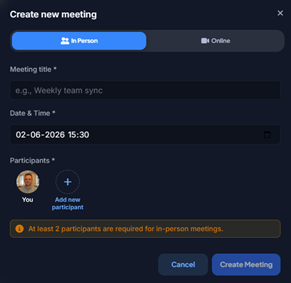
On the "Meetings" list, choose New Meeting.
Choose In Person.
Enter a Meeting title.
Set the Date & Time of the meeting.
Add the Participants. At least two participants are required for an in-person meeting. For each participant you can enter a name, an optional email, a role, and a type (for example, Candidate or Contact). Adding the right people helps mytranscript match them to OTYS later.
Choose Create Meeting.
Recording the conversation
Once the meeting is created, you can record the audio:
Open the meeting and start recording when you are ready.
Allow microphone access if your device asks for it.
mytranscript shows the recording time and an audio level indicator so you can confirm it is picking up sound.
Use Pause and Resume if you need to take a break.
Choose Stop Recording when the meeting is finished.
After you stop, you can choose Upload & Transcribe to send the recording for processing, or Discard Recording to delete it. Once uploaded, the meeting is transcribed and summarized just like an online meeting.
Good recording habits
Make sure your microphone is enabled on your device.
Keep your device close to the people speaking.
Recordings can be up to 4 hours long.
Uploading an existing audio file
Instead of recording live, you can upload an existing audio file. Supported formats include MP3, WAV, MP4, WebM, and OGG.
Installing the app on your phone (PWA)
mytranscript can be installed on your phone or tablet as an app, which makes in-person recording quick to start. It is a Progressive Web App (PWA), so you install it from your browser rather than from an app store.
Open mytranscript in your phone's browser.
Use your browser's menu and choose the option to add the app to your home screen (the exact wording varies by browser and device).
Open mytranscript from the new icon on your home screen.
Recording when you are offline
mytranscript is designed to keep working even without a stable internet connection.
When you are online, recordings and uploads sync immediately.
When you are offline, a new recording is saved on your device and added to an upload queue.
When your connection returns, queued recordings upload automatically. You will see progress such as "Uploading 1 of 2".
If an upload fails, you can choose Retry uploads once you are back online.
This means you can safely record an in-person meeting in a location with poor signal; the recording will upload as soon as you have a connection again. Keep the app open while uploads are in progress.
7. Calendar Integration
Connecting your work calendar lets mytranscript see your upcoming meetings and record them automatically, so you do not have to add each online meeting by hand. This chapter covers connecting a calendar, how events appear, and how to choose which meetings get recorded.
Why connect your calendar
When your calendar is connected, mytranscript:
Shows your upcoming meetings on the "Calendar" screen.
Schedules the bot to join and record meetings that have a video link, based on your recording rules.
Lets you turn recording on or off for individual events.
mytranscript only reads your calendar events. It never changes, creates, or deletes anything in your calendar.
Connecting your calendar
Go to "Settings" and choose Calendar, or open the "Calendar" screen and choose Connect calendar.
Choose your provider:
Google Calendar
Microsoft Outlook
Sign in with that provider and grant calendar access when prompted.
You are returned to mytranscript with a confirmation that your calendar is connected.
If you decline access or cancel, your calendar will not be connected and you can try again later.
How events appear
After connecting, open the "Calendar" screen to see your upcoming events for the next couple of weeks. Each event shows its time, the meeting platform (such as Google Meet, Microsoft Teams, or Zoom), and the participants.
Each event also shows whether it will be recorded:
Recording — the bot will join and record this meeting.
Not recording — this meeting will not be recorded.
No meeting link — there is no video link, so it cannot be recorded.
Choosing which meetings get recorded
Whether an event is recorded by default is decided by recording rules. There are two kinds:
Organization rules, set by your administrator for the whole organization.
Your personal rules, which apply only to your own calendar. See "Personal recording rules".
You can also override the decision for a single event directly on the "Calendar" screen:
Choose Enable Recording on an event to have the bot record it.
Choose Disable Recording on an event to stop it from being recorded.
mytranscript confirms your choice before changing anything. A manual choice on a specific event takes priority over the rules for that event.
Keeping your calendar in sync
mytranscript refreshes your events periodically. You can also trigger a manual sync from the "Calendar" screen. If you ever see a synchronization issue, try reconnecting your calendar from "Settings".
Disconnecting your calendar
To stop using calendar integration:
Go to "Settings" and choose Calendar.
Choose Disconnect (or Remove Connection) and confirm.
After disconnecting, upcoming events will no longer appear and automatic recording from your calendar will stop. You can still add and record meetings manually.
8. Personal recording rules
Personal recording rules let you control which of your calendar meetings get recorded automatically. They apply only to your own calendar and work together with the rules your organization has set. This chapter explains what they are and how to configure them.
What recording rules do
A recording rule decides, for each calendar event, whether mytranscript should record it. There are two types of rule:
Record. If the event matches the rule's conditions, record it.
Skip. If the event matches the rule's conditions, do not record it.
Rules only apply to meetings that come from your connected calendar and that have a video link. You can always override the decision for a single event from the "Calendar" screen (see "Calendar integration").
Organization rules versus your personal rules
When you open "Settings" and choose Personal Rules, you see two sections.
Organization Rules. These are set by your administrator and apply across the whole organization. Some are marked Required and always apply; you cannot switch these off. Others are marked Optional, and you can disable them for your own calendar if you want.
Your Personal Rules. Rules you create yourself. They apply only to your calendar and are evaluated after the organization rules.
Enabling or disabling an optional organization rule
For any organization rule marked Optional:
Choose Disable for me to stop the rule applying to your calendar.
Choose Enable for me to turn it back on.
Required rules cannot be disabled, and mytranscript will tell you so.
Creating your own personal rule
In "Settings", choose Personal Rules.
In the "Your Personal Rules" section, choose Add Custom to build a rule from scratch, or Add Preset to start from a ready-made example.
Give the rule a Rule Name (for example, "Skip my standup meetings") and an optional description.
Choose the Rule Type: Record or Skip.
Add one or more Conditions that decide when the rule applies. You can match on things like the meeting title, an attendee's email, the number of attendees, or the meeting duration. If you add no conditions, the rule matches all events.
Choose Create Rule.
Examples of useful personal rules
Skip meetings whose title contains "standup".
Skip meetings with only 2 attendees (to avoid recording one-on-ones).
Record meetings whose title contains "interview".
Editing, disabling, and deleting your rules
Each personal rule has actions to:
Edit rule to change its name, type, or conditions.
Disable rule to keep it but stop it applying for now.
Delete rule to remove it permanently.
mytranscript asks you to confirm before deleting a rule.
How rules combine
When mytranscript decides whether to record one of your meetings, it considers the organization rules first and then your personal rules. A manual choice you make on a specific event (Enable or Disable Recording on the "Calendar" screen) always wins for that event.
9. The meeting detail view
The meeting detail view is where you watch the recording, read the transcript, and review the AI summary and action items. This chapter explains the layout and how to navigate playback in sync with the transcript.
Opening a meeting
From the "Meetings" list, select any meeting to open its detail view. If the meeting is still being recorded or processed, the detail view shows the current status and what to expect; the recording and transcript appear once it is complete.
The media player
At the top of a completed meeting you will find the recording:
For online meetings, this is a video player.
For in-person meetings, this is an audio player.
The playback controls let you:
Play and Pause.
Rewind 10 seconds or skip forward 10 seconds.
Adjust the Volume or mute.
Seek to any point by dragging along the progress bar.
Open the video full screen.
The transcript
Next to or below the player is the transcript: the full text of what was said, broken into segments with the speaker's name and a timestamp.
You can:
Read the conversation from start to finish.
Search within the transcript to jump to where a word or phrase was said.
Playing in sync with the transcript
The player and the transcript are linked, which makes it easy to find and replay any moment.
Click a line in the transcript to jump the recording to that exact moment.
As the recording plays, the transcript follows along so you can read while you listen or watch.
Use the search box to find a phrase, then click a result to jump straight to it.
Tabs: Summary, Transcript, and Actions
A completed meeting groups its content into sections you can switch between:
Summary — the AI-written overview of the meeting and its key points. See "AI outputs".
Transcript — the full text, as described above.
Actions — the action items extracted from the meeting. See "AI outputs".
Participants
The detail view lists the meeting's participants, including their role (such as Host, Interviewer, or Candidate) and whether they are linked to a record in OTYS. You can open a participant to see more detail or, for a candidate or contact, open them directly in OTYS. See "Meeting results in OTYS".
Other actions
From the actions menu in the meeting detail view you can, depending on the meeting and your permissions:
Edit the meeting title (see "Editing a meeting").
Share the meeting (see "Sharing meetings").
Download the video.
Reprocess the transcript if something looks wrong.
Delete the meeting.
A note on video availability
Video recordings are kept for a limited time, after which the video expires and is removed. When this happens, the transcript and summary remain available even though the video no longer plays. The detail view tells you when a video is about to expire or has expired. How long videos are kept depends on your organization's plan.
10. AI outputs
After a meeting is recorded, mytranscript uses AI to turn the raw conversation into something useful: a summary, key points, action items, chapters, identified speakers, and tags. This chapter explains each output, how to read it, and how much to trust it.
Summary and key points
The Summary is a concise written overview of the meeting. Alongside it you will find key points: the most important takeaways, listed so you can scan them quickly.
The summary is generated automatically once the meeting reaches the Completed stage.
You can copy the summary to paste it elsewhere.
You can edit the summary if you want to correct or refine it. See "Editing a meeting".
If you edit it and later want the original back, you can restore the original AI version.
Action items (with evidence)
The Actions tab lists concrete follow-ups extracted from the conversation, grouped by type:
Tasks
Follow-ups
Decisions
Other actions
Each action item is short and describes something to be done or that was decided. You can add, edit, and delete action items yourself.
Evidence
For each AI-generated action, you can choose View evidence to see the part of the transcript the action was based on, with a timestamp. You can play the recording from that moment to hear the exact context. This helps you confirm that an action is accurate before you act on it.
Chapters and timeline
mytranscript divides the recording into chapters so you can jump to the part of the meeting you care about. Use the chapters to navigate a long meeting without scrubbing through the whole recording.
Speaker identification
During AI Review, mytranscript identifies who was speaking and labels each part of the transcript with a speaker name. For online meetings it can use the meeting's participant information; for in-person meetings it distinguishes between different voices.
If a speaker is labelled incorrectly or left unidentified, you can correct it:
Open the speaker editing option in the meeting detail view.
Match each detected speaker to the correct participant, or type a name.
Save your changes.
mytranscript may suggest matches with a confidence level (High, Medium, or Low); you can accept its suggestions or change them.
Tags and classification
mytranscript classifies each meeting and adds tags so meetings are easy to understand at a glance:
Category — a broad type such as Candidate Meeting, Internal Meeting, or Customer Meeting.
Tags — more specific labels such as "General Screening", "Vacancy Intake Session", or "Verbal Offer Presentation".
You can view the classification and the reasoning behind it from the meeting detail view.
How much to trust the AI
The AI outputs are a strong starting point, but they are generated automatically and can occasionally be imperfect. Use them with a few habits in mind:
For anything important, check an action item against its evidence and, if needed, the recording itself.
Correct speaker names where they are wrong, especially before sharing.
Edit the summary if it misses or misstates something.
Remember that the transcript is the most direct record of what was said; the summary and actions are interpretations of it.
11. Editing a meeting
Most of a meeting is captured automatically, but you can adjust several details afterwards: the title, the participants, the summary, action items, and speaker names. This chapter brings the editable parts together.
Editing the title
To rename a meeting:
Open the meeting.
Select the title (or use the edit title option) and type the new title.
Save. mytranscript confirms that the title changes are saved.
A clear, descriptive title makes meetings easier to find later in the "Meetings" list.
Editing participants
You can manage who is listed as a participant on a meeting.
Add a participant. Add someone who was in the meeting but is not listed, with a name and optional email.
Edit a participant. Change a participant's name, email, type (for example, Candidate or Contact), or role (for example, Interviewer or Interviewee).
Remove a participant. Remove someone who should not be listed.
Keeping participants accurate matters for OTYS: mytranscript uses a participant's details to match them to the right candidate or contact, and the meeting notes are synced to that person in OTYS. See "Meeting results in OTYS".
Note: if a participant is already linked to a record in OTYS, some of their details are managed by that link, and you may only be able to change their role.
Editing the summary
On the Summary tab you can edit the AI-written summary to correct or refine it:
Choose to edit the summary.
Make your changes.
Save.
When you save an edited summary, mytranscript starts syncing the updated text to OTYS. If you want to undo your edits, you can restore the original AI version.
Editing action items
On the Actions tab you can:
Add a new action item.
Edit an existing action's description or type.
Delete an action item you do not want.
As with the summary, changing action items starts a fresh sync to OTYS so the related record stays up to date.
Correcting speaker names
If the transcript shows the wrong speaker, you can fix it using the speaker editing option. See "Speaker identification" in "AI outputs".
Reprocessing a meeting
If the transcript or AI outputs look wrong overall, you can reprocess the meeting from the actions menu. Reprocessing regenerates the transcript and AI results. Be aware that reprocessing replaces the current results: any manual edits you made to the summary or actions will be lost. mytranscript warns you before it reprocesses.
12. Sharing Meetings
You can share a meeting with colleagues inside your organization or with people outside it. This chapter explains both kinds of sharing, what recipients can see, and how to revoke access.
Opening the share options
Open a meeting and choose Share. The share dialog has two tabs:
Internal — share with colleagues in your organization.
External — share with people outside your organization using a secure link.
Internal sharing (with colleagues)
On the Internal tab you can give colleagues access to the meeting.
Search for a colleague by name.
Set their permission:
Can view — they can open and watch the meeting.
Can edit — they can also make changes.
Can't view — they have no access.
Your choice is saved automatically.
You can also choose to share with all colleagues (including people who join your organization later), or follow an organization-wide sharing rule if your administrator has set one.
Colleagues you share with will find the meeting under Shared with me on their "Meetings" list. Internal sharing does not send an email; access is in-app only.
External sharing (with a secure link)
The External tab lets you share a meeting with someone who does not have a mytranscript account, such as a client or candidate.
Choose to invite a person.
Enter the recipient's Name and Email.
Choose what they may see (the access scope):
Video + transcript — the recording and the transcript.
Video + transcript and AI summary + key points — the recording, the transcript, and the AI summary with key points.
Send the invitation.
mytranscript emails the recipient a secure link together with a 6-digit verification code.
What the external recipient does
The recipient opens the link from the email. This brings them to a public viewer page; they do not need a mytranscript account.
They enter the 6-digit verification code from the email.
They can then view the meeting according to the access scope you chose.
A few details to be aware of:
The recipient sees only what the scope allows. With "Video + transcript" they do not see the summary or action items.
For security, there is a limit on how many times the wrong code can be entered. Too many incorrect attempts will lock that link.
If the video has expired, the transcript (and summary, if shared) still remain available to the recipient.
Seeing who has access and whether they viewed it
The share dialog shows the people you have shared with. For external shares you can see the status of the invitation, such as whether the email was sent and whether the meeting has been viewed.
Revoking access
You can withdraw access at any time:
Internal. Set a colleague's permission back to Can't view, or revoke their access.
External. Choose Revoke next to the recipient. The secure link stops working immediately, and the recipient will see that the shared meeting is no longer available
13. Meeting Results in OTYS
One of the main benefits of mytranscript is that your meeting notes end up in OTYS automatically. This chapter explains what gets written to OTYS, where to find it, and what to expect.
What is written to OTYS
When a meeting with a candidate or contact is completed, mytranscript writes a note to the related record in OTYS. The note contains:
The meeting summary.
The action items from the meeting.
A link back to the meeting in mytranscript, so anyone in OTYS can open the full recording and transcript with one click.
The full transcript text itself is not copied into OTYS; instead, the link takes you to the complete transcript in mytranscript. This keeps the OTYS record concise while still giving you access to everything.
Which participants this applies to
mytranscript only writes notes for participants that are candidates or contacts in OTYS:
Candidates — the note appears on the candidate's record.
Contacts — the note appears on the contact's record.
Internal colleagues are not written to OTYS. For a participant to be matched to an OTYS record, they usually need an email address that mytranscript can match, or to already be linked to an OTYS record.
Where to find the note in OTYS
Open the candidate or contact in OTYS and look at their notes (dossier). The mytranscript note is recognizable and contains the summary, the actions, and the link back to the meeting. If the same meeting is updated later (for example, you edit the summary), the existing note is updated rather than duplicated.
Opening the OTYS record from mytranscript
From a meeting's participants, you can open a linked candidate or contact directly in OTYS. Look for the option to open the candidate or contact in OTYS on the participant's details. This is a quick way to move from the conversation to the person's full record.
When the note appears
The note is created automatically once the meeting is processed and synced. Because it depends on matching participants to OTYS and on a successful sync, there can be a short delay, and in some cases a note may not appear:
The participant has no email and is not linked to an OTYS record, so there is no one to attach the note to.
No matching candidate or contact could be found in OTYS.
The connection to OTYS is not fully set up for your organization.
If you expected a note in OTYS and do not see one, check that the participant has the correct email and type, and see "Tips and troubleshooting". Your administrator can review the sync status in detail (see the "Organization Admin Guide").
Keeping OTYS up to date
Whenever you change the summary or the action items of a meeting, mytranscript re-syncs the note to OTYS so the record reflects your latest version. You do not need to copy anything across manually.
14. Notifications
mytranscript keeps you informed by email at a few key moments. This chapter explains which emails you might receive and when.
Your meeting is ready
When a meeting you recorded has finished processing, mytranscript emails you to let you know it is ready. This email is sent to the person who created or recorded the meeting.
The email includes:
The meeting title and duration.
The AI category and tags.
The summary and the action items.
The participants.
A View Meeting button that opens the meeting in mytranscript.
You will not receive this email if no one spoke during the meeting (an empty recording), and you only receive it once per meeting.
Login code
When you request to sign in with an email code, mytranscript emails you a 6-digit login code. See "Signing in from OTYS" for how to use it. This email is only sent when you ask for a code.
You have been sent a shared meeting (external recipients)
If someone shares a meeting with you from outside your organization, you receive an email containing a secure link and a 6-digit verification code. This is the email an external recipient gets; see "Sharing meetings" for the recipient's experience.
Note that sharing a meeting with a colleague inside your organization does not send an email. Instead, the meeting appears under Shared with me on their "Meetings" list.
Recording limit reached
If your organization's plan includes a monthly recording limit and you reach it, mytranscript emails you to let you know. The email shows how much you have used and which upcoming meetings are affected. Until your limit resets or is raised, new recordings are paused. See "Personal settings" and contact your administrator if you need a higher limit.
A note on email delivery
Emails come from mytranscript. If you do not see one, check your spam or junk folder.
Some links in emails (such as opening a meeting) require you to be signed in to mytranscript.
15. Personal Settings
Your personal settings let you tailor mytranscript to how you work. You reach them by choosing Settings (shown as "My profile") in the navigation. This chapter covers preferences, language, and your calendar settings.
Opening settings
Choose Settings from the navigation. Settings are organized into tabs:
Preferences — theme and language.
Calendar — your connected calendar.
Personal Rules — your personal recording rules.
Preferences: theme
Under Preferences you can choose how mytranscript looks:
Light mode
Dark mode
Auto (system) — follows your device's setting.
Your choice applies immediately and is remembered.
Preferences: language
mytranscript is available in several languages. Under Preferences, choose your Language. The interface updates right away. Available languages include:
English
Nederlands (Dutch)
Deutsch (German)
Čeština (Czech)
Français (French)
Español (Spanish)
Українська (Ukrainian)
Polski (Polish)
The language setting changes the mytranscript interface. It does not change the language of your meeting recordings or transcripts.
Calendar settings
The Calendar tab shows whether a calendar is connected and lets you connect or disconnect one. For full details, see "Calendar integration".
Personal recording rules
The Personal Rules tab is where you control which of your calendar meetings get recorded automatically. See "Personal recording rules" for full details.
Recording usage
mytranscript shows how much of your monthly recording allowance you have used, including minutes used and minutes remaining. If your organization's plan has a limit, keep an eye on this so you are not surprised when it is reached. See "Notifications" for what happens when you reach the limit.
Signing out
You can sign out from the user menu or from settings. See "Signing in from OTYS" for details on sessions and signing out.
16. Tips and troubleshooting
This chapter covers the most common issues and how to resolve them. If a problem persists after trying these steps, contact your organization administrator, who has additional tools to investigate.
The bot did not join my online meeting
If an online meeting was not recorded, open the meeting to see the reason. Common causes and fixes:
The bot waited in the lobby but was not admitted. Someone in the meeting needs to admit the bot from the waiting room, just like any other participant. Admit it promptly when it requests to join.
Nobody joined the meeting. The bot leaves if no one shows up. Make sure the meeting actually took place at the scheduled time.
The bot could not get recording permission. The meeting's settings may block recording. Check the platform's permissions, or record the meeting manually next time.
The meeting link was wrong. Confirm the link is a valid Teams, Google Meet, or Zoom join link, starting with http:// or https://.
To try again, you can create the meeting again with the correct link, or enable recording for the event on the "Calendar" screen.
Processing is taking a long time
After a meeting ends, it moves through Processing, Transcribing, and AI Review before becoming Completed. This usually takes a few minutes, but longer meetings take longer. If a meeting seems stuck for much longer than expected, refresh the page. If it still does not complete, contact your administrator.
The recording is empty
If you see a message that no one spoke during the meeting, the recording was captured but no speech was detected. This usually means everyone was muted or no audio reached the meeting. For in-person meetings, check that your microphone was enabled and your device was close enough to the speakers.
The transcript or speaker names look wrong
Use the speaker editing option to correct who said what (see "AI outputs").
If the whole transcript looks wrong, you can reprocess the meeting from the actions menu. Note that reprocessing replaces your manual edits to the summary and actions.
The video will not play
The video may have expired. Recordings are kept for a limited time; after that the video is removed but the transcript and summary remain. The meeting tells you if the video has expired.
If the video should still be available, try refreshing the video from the player. This gets a fresh link.
I reached my recording limit
If your plan has a monthly limit and you reach it, new recordings are paused until the limit resets or your administrator raises it. You will receive an email when this happens. Contact your administrator if you need more minutes.
Signing in from OTYS did not work
Make sure you are signed in to OTYS first, then open mytranscript from OTYS.
If you see a message that your OTYS account has no email address, add an email to your OTYS user account and try again.
If your session expired, simply open mytranscript from OTYS again.
If you are told your account is inactive or belongs to a different organization, contact your administrator.
As a fallback, you can request an email login code from the mytranscript login screen, as long as your email is already known to mytranscript.
My meeting notes did not appear in OTYS
Confirm the participant has the correct email and is set as a candidate or contact (not a colleague).
There can be a short delay after the meeting completes.
If notes still do not appear, ask your administrator to check the OTYS sync status. See "Meeting results in OTYS".
Offline recording did not upload
Reconnect to the internet and keep the app open.
If uploads do not resume automatically, choose Retry uploads.
See "Recording in-person meetings" for how offline recording works.
I’m in a meeting but forgot to add the mytranscript bot on forehand, how to add it?
To add the bot when a meeting is already in progress, you can copy the meeting invite link and open mytranscript. Then click the “New meeting” button and pick the option “Online meeting”, past the link, select “Start recording immediately”. And click create, the bot will try to join as soon as possible (within a minute or two).png?sv=2026-02-06&spr=https&st=2026-07-20T12%3A27%3A51Z&se=2026-07-20T13%3A38%3A51Z&sr=c&sp=r&sig=lljulp7dmMBOhGsE6QDlnQHGigvBTNQGFGl4hHS8GtI%3D)
Who to contact
For anything you cannot resolve here, contact your organization administrator. They can review users, recording rules, the OTYS connection, and detailed logs to help diagnose the issue.
17. Glossary
This glossary defines the terms used throughout the documentation.
Action item. A concrete follow-up, decision, or task that the AI extracted from a meeting. Action items are grouped into Tasks, Follow-ups, Decisions, and Other actions.
AI Review. The processing stage where mytranscript identifies speakers and generates the summary and action items.
Bot (note-taker). The automated participant that joins an online meeting on Teams, Google Meet, or Zoom to record it. It is visible to everyone in the call.
Calendar integration. Connecting your work calendar (Google Calendar or Microsoft Outlook) so mytranscript can see upcoming meetings and record them automatically.
Candidate. A person in OTYS being considered for a role. Meeting notes for a candidate are written to their OTYS record.
Chapters. Sections that mytranscript creates within a recording so you can jump to a specific part of the meeting.
Completed. The status of a meeting that has finished processing and is ready to watch, read, and review.
Contact. A person in OTYS such as a client contact. Meeting notes for a contact are written to their OTYS record.
External share. Sharing a meeting with someone outside your organization through a secure link and a verification code.
In-person meeting. A face-to-face meeting recorded directly on your phone or laptop, rather than through an online meeting bot.
Internal share. Sharing a meeting with a colleague inside your organization, who then sees it under "Shared with me".
Key points. The most important takeaways from a meeting, listed alongside the summary.
Online meeting. A meeting on Teams, Google Meet, or Zoom that mytranscript records by sending a bot into the call.
OTP (one-time code). A short numeric code, valid briefly, used either to sign in by email or to open an externally shared meeting.
OTYS. The recruitment system your organization uses. You sign in to mytranscript through OTYS, and meeting notes flow back to OTYS records.
Participant. A person who took part in a meeting. Participants can be colleagues, candidates, or contacts, and each can have a role such as Interviewer or Interviewee.
PWA (Progressive Web App). mytranscript installed on your phone or tablet from your browser, used especially for in-person recording.
Recording rule. A rule that decides whether a calendar meeting is recorded or skipped. Rules can be set by your organization or by you personally.
Single Sign-On (SSO). Signing in to mytranscript automatically using your OTYS account, without a separate password.
Summary. The AI-written overview of a meeting.
Sync. The process of writing a meeting's summary and action items to the related candidate or contact in OTYS.
Transcript. The full written text of what was said in a meeting, with speaker names and timestamps.
Tennant admin Guide
You’re currently visiting the Tennant admin Guide for Mytranscript. If you wish to view the regular user guide, you may scroll up to the top of this article, or click here to be redirected there instantly.
1. Introduction for administrators
As an organization administrator (tenant admin), you manage how mytranscript works for everyone in your organization. This chapter explains the admin role, what you can manage compared with a regular user, and how to reach the administrator settings.
The administrator role
A tenant admin is a regular mytranscript user with extra permissions to manage the organization. The role is granted by another administrator from the user management screen (see "User management"). Most people in your organization are regular users; only a small number need to be administrators. The role is directly based upon the “Application Admin” role in MyOTYS.
What admins can manage
In addition to everything a regular user can do, an administrator can:
Manage users: view them, control access, and grant or remove the admin role.
Configure organization-wide recording rules that apply to everyone.
Configure the recording bot's name and behaviour.
Manage organization settings, including allowed email domains and the default language.
Customize the AI instructions used to generate meeting summaries.
View the organization's plan, usage, and billing.
Oversee the OTYS connection.
Review audit logs, OTYS sync logs, and AI usage logs.
What admins do not manage
Some things are intentionally outside the tenant admin role:
Individual users' private content is theirs; admins manage access and settings, not the personal contents of every meeting.
Platform-level operations and system administration are handled by the service operator, not by tenant admins, and are out of scope for this guide.
Reaching the administrator settings
Sign in to mytranscript.
Choose Organization in the navigation.
The "Organization Settings" page is organized into tabs, each covered by a chapter in this guide:
Users
Recording Rules
Bot Settings
Internal Domains
AI Prompts
Billing
Audit Logs
Sync Logs (the OTYS sync log)
AI Usage Logs
If you do not see the Organization option, your account does not have the tenant admin role.
2. User management
The Users tab under "Organization Settings" is where you manage the people in your organization. This chapter covers viewing users, how users gain access through OTYS, roles and permissions, the user detail view, and blocking or removing access.
Viewing users
Choose Organization, then the Users tab. You see a list of everyone in your organization with columns such as:
Name and Email
Plan (their recording plan, or "No plan")
Admin (whether they are a tenant admin)
Calendar Connected
Meetings (total number)
Status (Active or Blocked)
You can filter the list by Active and Blocked users and page through large lists.
How users gain access (OTYS SSO)
You do not normally create users by hand. Instead, access is governed by OTYS Single Sign-On:
When someone from your organization signs in to mytranscript through OTYS for the first time, mytranscript automatically creates their account using their OTYS profile (name and email).
New users joining this way are automatically assigned your organization's default plan, if you have set one (see "Plans, billing, and quota").
New users are regular users by default, not administrators.
This means the practical way to "invite" someone is to ensure they have an OTYS account with a valid email and have them open mytranscript from OTYS. To remove access, you block or deactivate the user in mytranscript (see below); you also manage their underlying access in OTYS.
Roles and permissions
mytranscript has two roles within an organization:
Regular user. Can record, review, and share their own meetings, and manage their personal settings and rules.
Tenant admin. Everything a regular user can do, plus management of the organization (users, rules, bot, domains, AI prompts, billing, OTYS connection, and logs).
To change someone's role, open their user detail view and use Make tenant admin or Remove tenant admin. You cannot remove the admin role from your own account, which prevents an organization from being left without an administrator.
The user detail view
Select a user to open their detail view, which has an overview and management options.
The overview shows:
User information (email, last sign-in, total meetings, created date).
Their current plan and monthly usage (used and limit).
Their calendar connection status.
Their personal recording rules.
From the management options you can:
Change or remove the user's plan, including scheduling a change for next month.
Toggle the tenant admin role.
Block or unblock the user.
Blocking and unblocking a user
Blocking is how you stop someone from using mytranscript while keeping their data.
Choose Block User. A blocked user cannot sign in or use the application. Their plan is retained, but billing for them stops while they are blocked.
To restore access, choose Unblock User. They can sign in again and billing resumes.
mytranscript warns you before blocking, especially if the user has active recordings, since blocking may interrupt them.
Removing access
Because access is tied to OTYS SSO, the way to remove someone from mytranscript is to block them (so they can no longer sign in) and to manage their access in OTYS. Blocking preserves their meetings and history for your records and for compliance. See "Data, privacy, and retention" for how data is handled.
Setting the default plan for new users
From the Users tab you can configure the Default Plan that is automatically assigned to new users who join through OTYS SSO. See "Plans, billing, and quota" for details.
3. Organization-wide recording rules
Recording rules decide which meetings mytranscript records automatically. Organization-wide rules apply across your whole organization and set the baseline for everyone. This chapter explains how to configure them and how they interact with users' personal rules.
Where to find them
Choose Organization, then the Recording Rules tab.
How rules work
Each rule is either:
Record — if a calendar event matches the rule's conditions, record it.
Skip — if a calendar event matches the conditions, do not record it.
Rules apply to meetings that come from users' connected calendars and that have a video link. A rule's conditions can match on the meeting title, an attendee's email, the number of attendees, or the meeting duration. When a rule has several conditions, all of them must be met for the rule to apply.
Quick setup
If you are starting from scratch, use the quick setup:
Apply Default Rules sets up a recommended configuration. If you have configured internal domains, this skips internal team meetings and records external meetings. Without internal domains, it records all meetings that have a video link.
You can refine the result afterwards.
Adding rules
You can build your rule set from presets or from scratch:
Add Preset lets you pick from ready-made rules, such as:
Skip internal meetings (do not record meetings where all attendees are from your organization).
Record all meetings (with a video link).
Skip short meetings (under 15 minutes).
Record interviews only (title contains "interview").
Skip one-on-one meetings (only two attendees).
Add Custom lets you create a rule with your own name, type, and conditions.
Required versus optional rules
For each organization rule you can decide how much control users have:
Required. The rule always applies and individual users cannot disable it for their own calendars.
Optional. Users may disable the rule for their own calendar if they choose.
Use Make required or Make optional on a rule to switch between the two. Use required rules for policies that must hold for everyone (for example, a compliance rule), and optional rules for sensible defaults users can opt out of.
How organization rules interact with personal rules
When mytranscript decides whether to record one of a user's calendar meetings, it evaluates the rules in this order:
Organization rules (set here) are applied first.
The user's personal rules are applied next and can refine the outcome, except where an organization rule is Required.
A manual choice on a specific event (the user enabling or disabling recording on the "Calendar" screen) always wins for that event.
This lets you set a safe organization-wide baseline while still allowing users to tailor recording to their own work, within the limits you set.
Editing, disabling, and removing rules
Each rule offers options to Edit rule, Disable rule (keep it but pause it), and Delete rule. You can also restore the standard rule set or reset to the recommended defaults; mytranscript confirms before replacing your existing rules.
4. Bot configuration
The recording bot is the participant that joins your organization's online meetings to record them. The Bot Settings tab lets you control how it presents itself and when it joins. This chapter explains each setting.
Where to find bot settings
Choose Organization, then the Bot Settings tab.
Bot name
The Bot name is the display name shown to everyone in a meeting when the bot joins (in the participant list). Choose a name that clearly identifies it as a note-taker, for example "AI Note Taker". If you leave it empty, a default name is used.
A clear name reinforces that the meeting is being recorded and helps participants understand who the extra participant is.
Join timing
Join timing controls how early the bot joins before a scheduled meeting starts. The options are:
Just on time
1 minute before
2 minutes before
5 minutes before
Joining a little early helps ensure the bot is admitted and recording from the very start of the conversation.
Join chat message
You can have the bot post a short message in the meeting chat when it joins:
Turn on Send a chat message when the bot joins.
Enter the Chat message you want posted, for example: "Hi! I'm a note-taking assistant. I'll be recording and transcribing this meeting."
This message informs everyone in the meeting that notes are being taken, which supports a transparent, consent-friendly approach to recording.
Why these settings matter
The bot is always visible to participants, but a recognizable name and a clear chat message make recordings transparent and professional. Consider your organization's policies and local expectations around recording when choosing the name and message.
Saving changes
Make your changes and save. Bot settings apply to future meetings recorded for your organization.
5. Organization settings and domains
This chapter covers your organization's general settings, with a focus on internal email domains, which influence both recording rules and how participants are classified.
Internal email domains
The Internal Domains tab (shown as "Internal Email Domains") is where you tell mytranscript which email domains belong to your organization.
Choose Organization, then the Internal Domains tab.
How internal domains are used
Internal domains do two important things:
They classify attendees. Recording rules use them to tell internal people apart from external ones. For example, the "Skip internal meetings" rule relies on internal domains to recognize when every attendee is from your organization.
They mark colleagues in transcripts. A participant whose email matches an internal domain is automatically treated as a colleague in meetings. This is important because colleagues are not synced to OTYS as candidates or contacts.
In other words, getting internal domains right makes both your recording rules and your OTYS sync behave correctly.
Adding and removing domains
Enter a domain (for example, company.com) and choose Add.
To remove a domain, choose Remove domain next to it.
mytranscript validates the format and prevents duplicates. Add every domain your organization uses for email, including any secondary or regional domains.
Default language
Your organization can have a default interface language, which sets the starting language for the experience. Individual users can still choose their own language in their personal settings (see "Personal settings" in the Regular User Guide).
Organization profile
Your organization's profile (such as its name) is established when the organization is first set up, based on the OTYS connection. General organization options are managed from the "Organization Settings" tabs described throughout this guide.
Saving changes
After changing any organization setting, save. mytranscript confirms when settings are saved successfully. Changes to internal domains take effect for future meetings and rule evaluations.
6. AI prompt customization
You can guide how mytranscript writes summaries, action items, categories, and tags for your organization by adding your own instructions. The AI Prompts tab is where you do this. This chapter explains what these instructions do and how to use them well.
Where to find it
Choose Organization, then the AI Prompts tab.
What the instructions do
The instructions you set here are the default guidance the AI follows whenever it creates meeting summaries, action items, categories, and tags for your organization. For example, you can tell the AI to:
Use specific terminology and correct common transcription mistakes.
Emphasize particular details for recruitment or vacancy meetings.
Focus on certain points for customer calls.
Write in a particular style or tone.
Important: these instructions only affect how the AI writes its summary and related outputs. The original transcript text is never changed by them.
Adding instructions
Enter your guidance in the Default instructions field. You can write plain sentences and simple term mappings, for example:
"product x > Product X"
"Focus the summary on decisions, risks, and concrete next steps."
Save.
Smart prompt additions
To help you get started, mytranscript offers ready-made suggestions you can add with one click and then adjust. Examples include:
Terminology glossary — correct common transcription mistakes and enforce exact terms.
Recruitment interview — emphasize candidate background, motivation, experience, salary expectations, availability, fit, and next steps.
Vacancy intake — capture role context, must-have and nice-to-have skills, rate, location expectations, timeline, stakeholders, and open questions.
Customer call — focus on customer goals, pain points, objections, budget signals, decision criteria, and follow-ups.
Executive summary — start with the most important outcome, then decisions, risks, and next steps.
Risks and open questions — always surface risks and open questions when discussed.
Action ownership — include owner and due date only when explicitly spoken.
Dutch business tone — write clear, practical professional Dutch when the meeting is in Dutch.
You can add a suggestion, then edit the text to fit your organization.
Good practices
Be specific about terminology, names, and acronyms your organization uses; this noticeably improves summary quality.
Tell the AI what to focus on, but avoid asking it to invent details. The best instructions ("do not invent owners or deadlines that were not spoken") keep summaries trustworthy.
Start from a suggestion and refine it over time as you see the results.
Where to see the effect
These instructions apply to summaries generated after you save them. You can review how AI is being used across your organization, including the custom instructions applied to each request, in the AI usage logs (see "Logs and oversight").
7. Plans, billing, and quota
Recording capacity in mytranscript is governed by plans. Each user can be assigned a plan that grants a monthly allowance of recording minutes. This chapter explains plans, the default plan for new users, usage and quota, and the billing information available to you.
How plans work
A plan defines how many recording minutes a user gets per month and the monthly cost. Typical plans range from a free starter plan with a modest monthly allowance to higher tiers with more minutes, up to an unlimited option. The exact plans and prices available to your organization are configured for you by the service provider.
A user must have a plan to record meetings. A user with no plan sees a message that they have no active plan and cannot record until one is assigned.
Assigning and changing a user's plan
From the Users tab, open a user's detail view to manage their plan:
Assign or Change their plan.
Choose when the change takes effect: This month (the full price applies for the current month) or Next month.
Remove a plan if the user should no longer be able to record.
mytranscript helps you decide by showing the price impact and warning you if a user's recent usage suggests they would exceed a smaller plan's limit. You can also schedule a change for a future month and cancel a pending change before it applies.
The default plan for new users
So that people can start recording as soon as they join, you can set a default plan that is automatically assigned to new users who arrive through OTYS SSO.
Go to the Users tab.
Open Default Plan.
Select the plan to assign automatically (or choose none, so new users start without a plan).
Usage and quota
Each user has a monthly recording allowance based on their plan. When a user approaches or reaches their limit:
The user is notified by email, and so are the organization's administrators (see "Notifications" in the Regular User Guide).
New recordings for that user are paused until the next month or until you raise their plan.
You can see each user's used and remaining minutes in their detail view and in the user list.
Billing
Choose Organization, then the Billing tab to see the billing picture for your organization:
The number of users with a plan.
The total monthly cost.
A per-user breakdown of plan, minutes used, limit, and cost.
You can export the billing breakdown to CSV for your records.
Note that blocked users keep their plan but are not billed while blocked (see "User management").
8. OTYS integration setup
The OTYS integration is what connects mytranscript to your recruitment system. It governs how users sign in and how meeting notes flow back to candidates and contacts. This chapter explains how to complete the setup, what data syncs, and the controls available to you.
What the integration does
The OTYS integration provides two things:
Single Sign-On (SSO). Your users sign in to mytranscript using their OTYS accounts, with no separate password.
Transcript and summary sync. When a meeting with a candidate or contact is completed, mytranscript writes a note to the matching record in OTYS, containing the summary, the action items, and a link back to the meeting.
How sign-in works (SSO)
When a user opens mytranscript from OTYS:
mytranscript verifies the OTYS session and creates the user's account on first use, based on their OTYS profile (name and email).
The user must have a valid email address in OTYS; sign-in cannot complete without one.
The user is placed in your organization automatically and assigned your default plan if you have set one.
You do not create users manually; OTYS SSO governs who can access mytranscript. See "User management".
What data syncs to OTYS
When a meeting with a candidate or contact reaches the Completed stage, mytranscript writes a note to the matching OTYS record. The note contains:
The meeting summary (as text).
The action items.
A link back to the meeting in mytranscript for the full recording and transcript.
The full transcript text is not copied into OTYS; the link provides access to it.
Which participants are matched
Only participants that are candidates or contacts in OTYS receive a note.
Colleagues (internal participants) are never synced. This is why correct internal domains matter (see "Organization settings and domains").
mytranscript matches a participant to an OTYS record by their email or an existing OTYS link. If no match is found, no note is written for that person.
When sync runs
Sync happens automatically when a meeting completes, and again whenever the summary or an action item is edited, so the OTYS note reflects the latest version. Users can also trigger a sync manually for a meeting or participant. If a sync fails for a temporary reason, mytranscript retries it automatically several times with increasing delays before giving up.
The controls available to you
As an administrator you can:
Maintain internal domains so the right participants are treated as colleagues versus candidates or contacts (see "Organization settings and domains").
Monitor sync health on the "Sync Dashboard" and in the OTYS sync logs (see "Logs and oversight"), and retry failed syncs.
Sync Dashboard
Administrators have a Sync dashboard that summarizes the health of OTYS syncing across your organization:
Counts of successful syncs, failed syncs, and pending retries.
An overall success rate.
A list of recent failures with the reason and a link to the affected meeting.
A Retry sync action for failed items.
For a detailed, filterable history of every sync, use the OTYS sync logs described in "Logs and oversight".
9. Calendar integration (Organization side)
Calendar integration in mytranscript is connected per user: each person links their own work calendar. As an administrator, your role is to understand how it works, encourage adoption, and set the organization-wide policies that decide what gets recorded from those calendars. This chapter covers the organization side.
How calendar integration works for your organization
Each user connects their own calendar (Google Calendar or Microsoft Outlook) from their personal settings. mytranscript only reads calendar events; it never modifies anyone's calendar. Once connected, a user's upcoming meetings appear in mytranscript and can be recorded automatically according to the recording rules.
For the user-facing steps to connect a calendar, see "Calendar integration" in the Regular User Guide. You can point users there.
What you control at the organization level
While the connection itself is per user, you control what happens with those calendar events through:
Organization-wide recording rules. These decide, across all connected calendars, which meetings are recorded or skipped. This is your main lever. See "Organization-wide recording rules".
Required versus optional rules. Mark rules as required where recording (or skipping) must be enforced for everyone, and optional where users may opt out.
Internal domains. These let rules distinguish internal from external attendees, which powers rules such as "Skip internal meetings". See "Organization settings and domains".
Bot configuration. The bot's name, join timing, and join message apply to every recorded calendar meeting. See "Bot configuration".
Seeing who has connected a calendar
In the Users tab, the user list shows a Calendar Connected indicator, and each user's detail view shows their calendar connection status. Use this to see how widely calendar integration has been adopted and to follow up with users who have not yet connected.
Encouraging adoption
Calendar integration is what makes automatic recording effortless. To get the most value:
Set sensible organization-wide recording rules first, so that once users connect their calendars, the right meetings are recorded automatically.
Ask users to connect their calendars during onboarding.
Keep internal domains complete so internal-only meetings are handled correctly.
What you cannot do
You cannot connect or disconnect a calendar on a user's behalf, and you cannot see the private contents of users' calendars. Calendar connection is a personal action each user takes from their own settings.
10. Logs and oversight
mytranscript keeps detailed logs so you can govern your organization, demonstrate compliance, and troubleshoot problems, especially OTYS sync. This chapter explains the three logs available to administrators and how to use them.
All three are found under Organization Settings.
Audit logs
The Audit Logs tab records significant actions taken in your organization, so you have a trail of who did what and when.
Each entry shows:
The date and the user who performed the action.
The action (for example, sign-in, meeting created or deleted, plan changed, recording rule changed, user blocked).
The resource affected and its type.
The originating IP address and whether the action succeeded.
You can filter by date range, user, action, resource type, and IP address, and export the results to CSV.
Use audit logs to answer questions such as "who deleted this meeting?", "when did this user become an admin?".
OTYS sync logs
The OTYS sync log (the Sync Logs tab) records every attempt to sync data to OTYS. This is your primary tool for troubleshooting why a meeting's notes did or did not reach OTYS.
Each entry shows:
The meeting and the participant involved.
The operation (for example, syncing a transcript note, or searching OTYS for a matching candidate or contact).
A link to open the candidate or contact in OTYS.
The status (Pending, Success, or Failed) and the timestamp.
You can expand an entry to see details, including the OTYS entity, the entity type (candidate or contact), and the request and response information for a failed sync. You can filter by date range, participant or meeting name, entity type, operation type, and status, and export to CSV.
Together with the "Sync Dashboard" (see "OTYS integration setup"), the sync logs let you see exactly which syncs failed and why, and retry them.
AI usage logs
The AI Usage Logs tab records each time AI was used in your organization, which is useful for oversight and cost awareness.
Each entry shows:
The timestamp and the meeting and meeting user involved.
The purpose (for example, speaker identification, or meeting summary and actions), including whether it failed.
The provider and token counts.
You can expand an entry to see more detail, including the custom instructions your organization applied to that request (the full underlying prompt is not shown). You can filter by date range, meeting user, and purpose, and export to CSV.
Using the logs together for governance
For an access or security question, start with Audit Logs.
For "the notes are not in OTYS" questions, use the Sync Dashboard and the OTYS sync logs.
To understand AI activity and the effect of your AI instructions, use the AI Usage Logs.
All three logs can be exported to CSV so you can keep records or share them with colleagues responsible for compliance.
11. Data, privacy, and retention
As an administrator you are responsible for how your organization handles meeting data. This chapter summarizes what you should know about retention, deletion, and the data shared with OTYS, so you can meet your privacy obligations.
What data mytranscript holds
For your organization, mytranscript stores:
Meeting recordings (video for online meetings, audio for in-person meetings).
Transcripts and AI outputs (summaries, action items, chapters, tags).
Participant details (names, emails, roles, and links to OTYS records).
User accounts and settings, and the logs described in "Logs and oversight".
Video retention
Video recordings are kept for a limited period and then expire automatically. How long videos are kept depends on your organization's plan. After a video expires:
The video is removed and can no longer be played.
The transcript and summary remain available.
mytranscript shows users when a video is about to expire or has expired. Encourage users to download a recording they need to keep before it expires.
Deletion and soft-delete
mytranscript uses soft-delete to support privacy and compliance:
When a meeting is deleted, it is removed from view. Deletion is handled in a way that supports data-protection requirements rather than being an instant, unrecoverable wipe.
Blocking a user preserves their meetings and history (so your records stay intact) while preventing them from signing in. See "User management".
If you have a specific data-deletion or data-subject request to fulfil, follow your organization's data-protection process and contact the service provider where platform-level action is required.
Data shared with OTYS
Because mytranscript writes meeting notes back to OTYS, you should be aware of what leaves mytranscript for OTYS:
For meetings with a candidate or contact, mytranscript writes a note to that person's OTYS record containing the summary, the action items, and a link back to the meeting.
The full transcript text is not written into OTYS; it stays in mytranscript and is reached through the link.
Colleagues are never synced to OTYS.
Once a note is in OTYS, it is governed by OTYS and your OTYS data-handling policies. Deleting a meeting in mytranscript does not automatically remove a note already written to OTYS.
You control which participants are treated as candidates or contacts versus colleagues through internal domains and participant types (see "Organization settings and domains").
Privacy good practices
Keep internal domains accurate so colleagues are not treated as external candidates or contacts.
Use the bot's join chat message to make recording transparent to participants (see "Bot configuration").
Use audit logs to review access and changes (see "Logs and oversight").
Apply the principle of recording only what you need by configuring recording rules thoughtfully (see "Organization-wide recording rules").
Where this guide stops
Platform-level data operations and infrastructure handling are managed by the service provider and are outside the scope of this administrator guide. For obligations that require action at that level, contact the service provider.
12. Admin troubleshooting and FAQ
This chapter covers the issues administrators are most likely to face, with a focus on OTYS sync failures and sign-in problems. For day-to-day user issues, see "Tips and troubleshooting" in the Regular User Guide.
OTYS sync issues
Meeting notes are not appearing in OTYS
Work through these checks:
Is the participant a candidate or contact? Colleagues are never synced. Check the participant's type on the meeting.
Does the participant have a matchable email? mytranscript matches participants to OTYS records by email or an existing link. Without a match, there is no record to write to.
Are your internal domains correct? A misconfigured domain can cause a candidate or contact to be treated as a colleague (and therefore skipped). See "Organization settings and domains".
Check the Sync Dashboard and sync logs. Look for the specific meeting and participant, read the failure reason, and use Retry sync. See "Logs and oversight".
A sync keeps failing
Open the entry in the OTYS sync logs and expand it to see the error and the response from OTYS. mytranscript retries temporary failures automatically several times. Permanent issues (such as no matching record, a missing email) are not retried automatically and need the underlying cause fixed. After fixing the cause, retry the sync from the dashboard or logs.
Sign-in (SSO) issues
A user cannot sign in from OTYS
Missing email in OTYS. If the user's OTYS account has no email address, sign-in cannot complete. Add an email to their OTYS user account and have them try again.
Account inactive or blocked. Check the user's status in the Users tab. Unblock them if appropriate. See "User management".
Wrong organization. If a user is told their account belongs to a different organization, their email is associated with another organization. Contact the service provider to resolve this.
Session expired. Ask the user to open mytranscript from OTYS again.
A user has no plan and cannot record
Assign them a plan from their user detail view, or set an organization default plan so new users are covered automatically. See "Plans, billing, and quota".
Email login codes are not arriving
The email must already be known to mytranscript (the user must have signed in via OTYS at least once).
Ask the user to check their spam folder.
There are limits on how often a code can be requested; ask the user to wait a few minutes before retrying.
Recording issues across the organization
Meetings are not being recorded automatically
Confirm the user has connected their calendar (the Calendar Connected indicator in the Users tab).
Review your organization-wide recording rules; a "Skip" rule or a missing "Record" rule may be the cause. See "Organization-wide recording rules".
Confirm the meeting has a video link; meetings without a link cannot be recorded.
Users report hitting their recording limit
Check their usage in the user detail view. Raise their plan if appropriate, or set expectations about the monthly allowance. See "Plans, billing, and quota".
Frequently asked questions
Do I create user accounts manually?
No. Users are created automatically when they first sign in through OTYS. You manage their access, role, and plan afterwards.
Does deleting a meeting in mytranscript remove the note from OTYS?
No. A note already written to OTYS is governed by OTYS. See "Data, privacy, and retention".
Can two administrators manage the organization?
Yes. You can grant the tenant admin role to multiple users. You cannot remove the role from yourself, which ensures the organization always has an administrator.
Where do I see the full prompt the AI used?
The AI usage logs show the custom instructions your organization applied, but not the full underlying prompt. See "Logs and oversight".
Who do I contact for platform-level problems?
For anything beyond your organization's settings (infrastructure, the SSO partner connection, or platform data operations), contact the service provider.